What is the FortiFone User Portal?
The FortiFone User Portal lets you manage your phone settings online—voicemail, call forwarding, call history & contacts.
1. Sign In
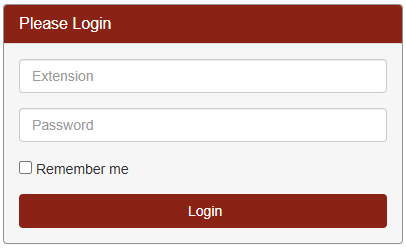
- Open your browser and go to the Owasso Bookmarks and click OPS Phone System or browse to https://phones.owassops.org/voice .
- Enter your username (Your Extension).
- Enter your password (Your Computer Password).
- Click Sign In.
2. Dashboard Overview
After login, you’ll typically see: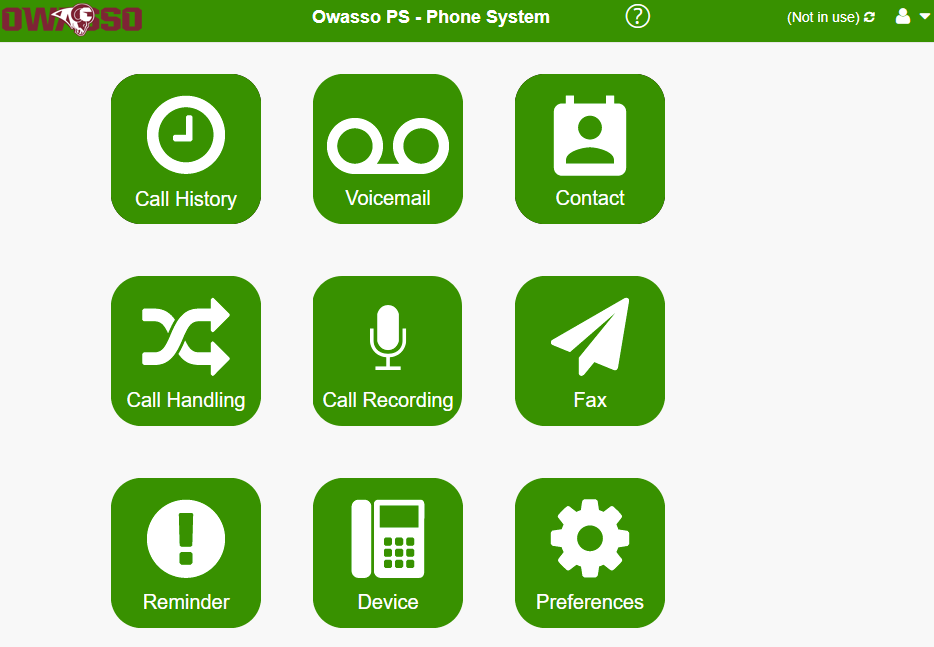
3. Voicemail
Record or Change Your Greeting
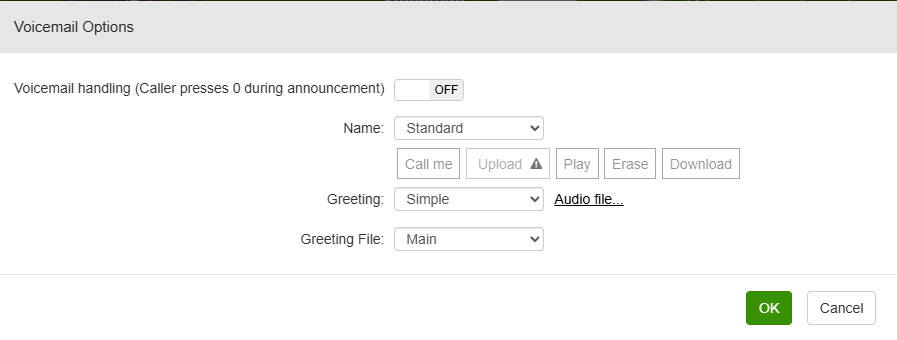
- Go to Voicemail.
- Select Voicemail Options.
- Record using:
- Your computer microphone or
- Upload an audio file (if enabled).
- Save changes.
Listen to Voicemail

- Go to Voicemail from the Dashboard page.
- Click play to play a message.
- Check the box next to the message to enable options to delete, Download, Forward, Mark As Urgent, Read or Unread.
- Voicemails may also be delivered to your email (if enabled)
4. Call Handling
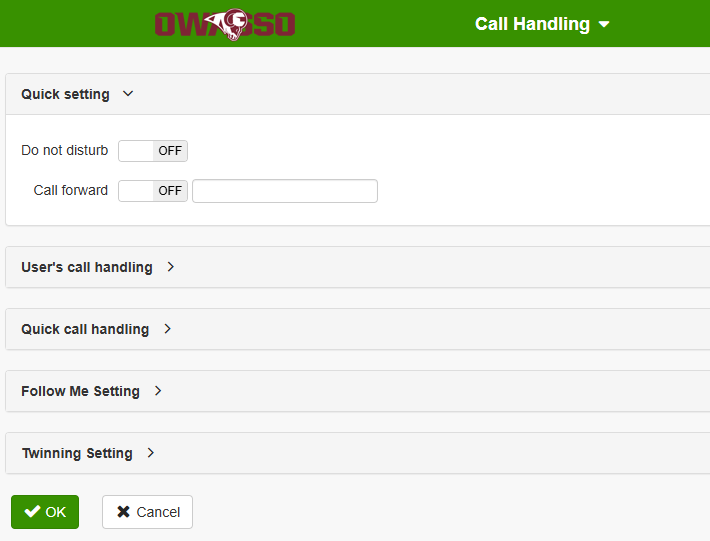
- Open Call Handling.
- Enable or Disable Do not distrub.
- Enable or Disable Call forward.
- Under User's call handling configure more call handling options based on your phone status.
- Under Quick call handling configure Out of office, Away and Other settings and define schedules.
- Click OK to Save changes.
5. Call History
- Open Call Logs or History
- View:
- Incoming calls
- Outgoing calls
- Missed calls
- Click the phone icon to call a number back from your desk phone.
7. Contacts
- Click Contact on the Dashboard page.
- Use the Dropdown at the top of the screen to select Personal or Directory.

- Select Directory to search for extentions by name.
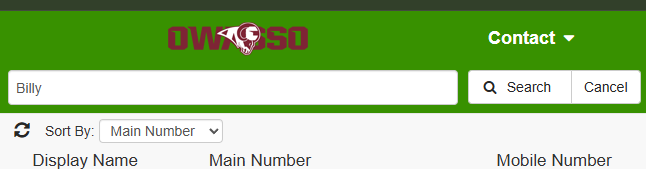
- Click the phone icon
 next to their name to call them on your desk phone.
8. Preferences
- User Settings
- Add your picture to display on the other caller's phone when on a call.
- Change your voicemail PIN
- Display Preferences
- Customize your Default Portal, Phone language, GUI language, GUI color and Time Zone.
- Use Programmable Key... to program the keys on your phone.