Issue: You are unable to connect your district-provided laptop to the OPS Wi-Fi network.
Resolution Steps
- Follow these steps to reset and refresh your wireless connection:
- Verify Location: Ensure that you are at an OPS building.
- Connect via Wired Network: Plug your laptop into a docking station.
- Log In: Log into your laptop if you are not already signed in.
- Locate Network Icon: At the bottom right corner of your screen (next to the clock), click on the network icon (represented by a computer screen with an Ethernet cable/plug).
NOTE: If you don't see the network icon, create a ticket to have your desktop inspect the docking station connection and try connecting to a different dock to complete this process.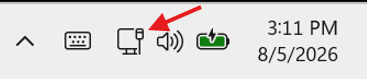
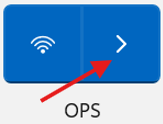
- Open Wi-Fi Menu: Click the arrow next to the Wi-Fi icon to view available wireless networks.
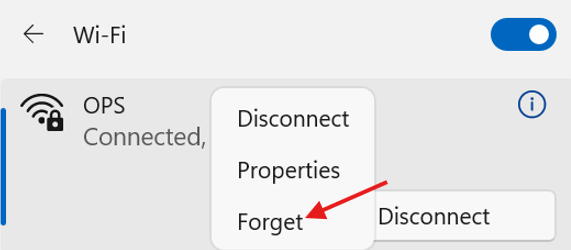
- Forget the Network: Right-click on the OPS network in the list and select Forget.
- Reconnect: Select the OPS network from the list again and click Connect.
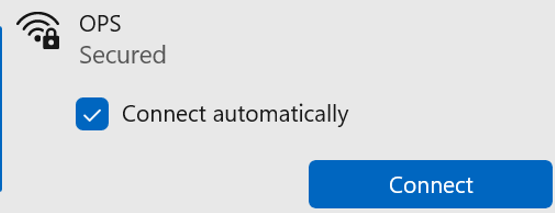
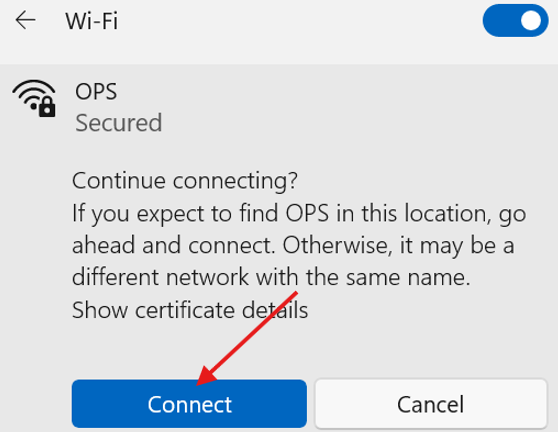
- Confirm Connection: When prompted to "Continue connecting", click Connect.
- NOTE: If you are prompted for a user name and password, click Cancel and try again.